

How To Install Xrdp On Kali Linux
Installing xRDP on Kali Linux
13 October 2019
There are a lot of complicated tutorials on how to get xRDP working on Kali Linux. I suspect the tutorials have become complicated as they address a variety of bugs that xRDP and connecting software has had over time, but there isn't much you actually need to do.
Note that if you are using Gnome, you'll run into issues. I have got RDP working with Gnome before, but I haven't been able to create a reliable set of steps to replicate it, as it usually starts working after several hours of messing around. If this is you, then you can try the below, but it may just be your starting point.
Install xRDP
The only package you need is xrdp, which you should enable after installation.
sudo apt update sudo apt install xrdp sudo systemctl enable xrdp sudo systemctl restart xrdp "Authentication is required to create a color managed device"
If you get this message there are a few potential fixes. The one I use is to add the following file to policy kit, and restart it:
# Create /etc/polkit-1/rules.d/02-allow-colord.rules, # and insert the following as its contents: polkit.addRule( function (action, subject) { if ((action.id == "org.freedesktop.color-manager.create-device" || action.id == "org.freedesktop.color-manager.create-profile" || action.id == "org.freedesktop.color-manager.delete-device" || action.id == "org.freedesktop.color-manager.delete-profile" || action.id == "org.freedesktop.color-manager.modify-device" || action.id == "org.freedesktop.color-manager.modify-profile" ) && subject.isInGroup( "sudo" )) { return polkit.Result.YES; } }) ; # Note that 'sudo' can be any group, but since your normal user is likely in that group, this # setting should work. # Then restart policy kit sudo systemctl restart polkit Open your Firewall
If you are using UFW, you'll need to open up a port.
Then in Windows, you'll need to lower your color depth in the RDP settings when you make a connection:
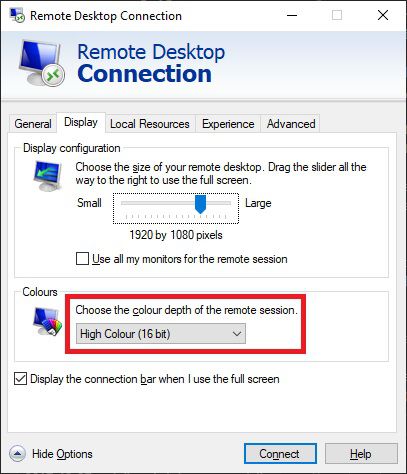
And it should work from this point.
Connecting via an SSH tunnel
xRDP transport is encrypted using TLS by default, and should be as secure as RDP is on windows, but if you open it up to the internet you can expect to be subject to ongoing brute force attacks. If a vulnerability is found, you can expect it to be used against you pretty soon. A safer option is to connect using an SSH tunnel, and secure that using certificates instead of passwords.
Install PuTTY & Set Up
I'm assuming you know how to set up port forwarding on your router, and how to install puTTY. If not, Google is your friend. First step is just to put in your IP address (take a look at duckdns.org if you need a static one) and the external port that you've chosen into puTTY.
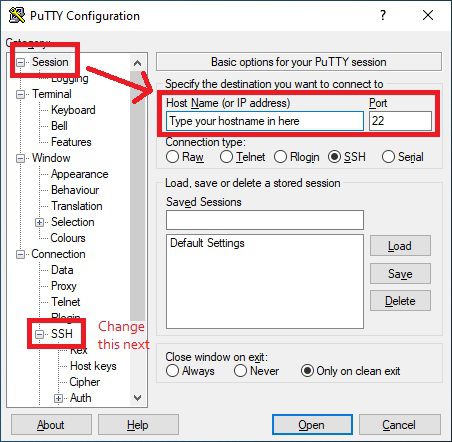
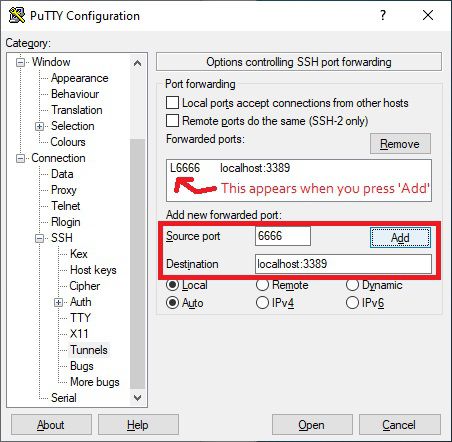
Next, you need to go into Tunnel under SSH. Here you need to add a Source port, which can be any port you have available on Windows. I've used 6666 in this example. Then under destination, add localhost:3389.
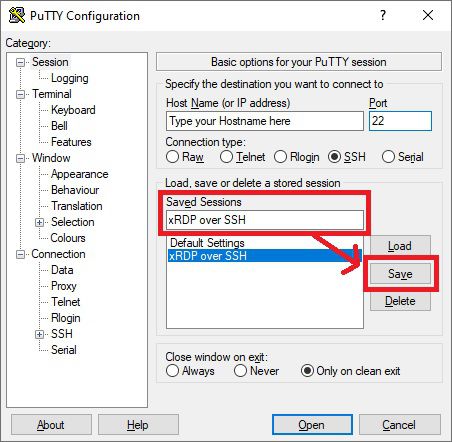
Under Session, you will probably want to save these settings so that you don't need to do the setup every time.
Create a Private Key file with PuTTYGen
Press the Windows key and type in 'PuttyGen', which should open up the following program:
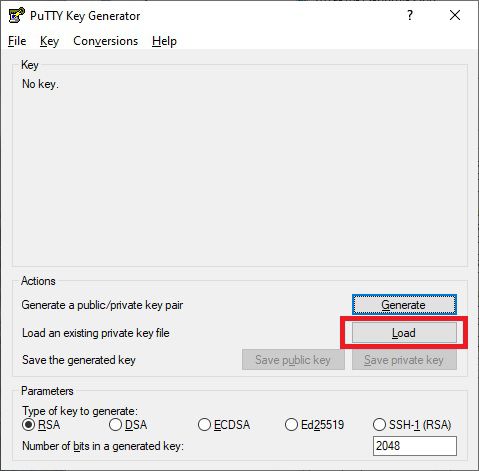
Click on Load, and select your private 'id_rsa' key that you normally use for logging in via SSH. You can then save this as a .ppk file. Once you have this, under SSH and Auth, add the .ppk key file.
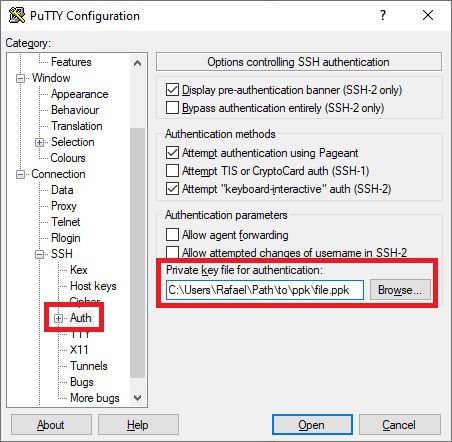
Again, you'll want to go back to Session and save this.
Connect the tunnel
Now that this is set up, connect using puTTY by pressing 'Open'. You'll get a black window, asking you for the username, which will probably be 'root' for Kali.
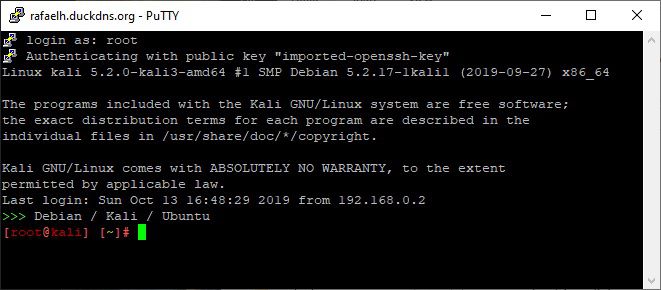
Now that the connection is established, go into RDP and use localhost and the port you configured in puTTY to connect:
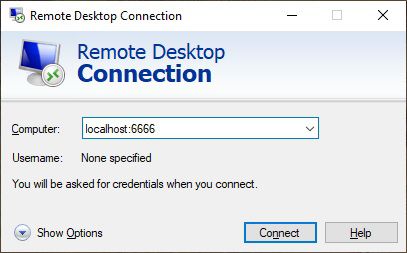
And all being well, you should successfully connect to xRDP via an SSH tunnel at this point
Last bits of security
Set SSH to accept Certificates only
You will need to edit the SSH daemon config and restart it. Make sure you have certificates set up and can authenticate without a password before you turn this off.
# in /etc/ssh/sshd_config, set the following: PasswordAuthentication no # Then reload the daemon systemctl restart ssh Set xRDP to require SSH tunnels
The last bit of security you can apply is to force xRDP to require a tunnel by constraining it to accept local connections only.
# Under /etc/xrdp/xrdp.ini, add the following line to the [globals] section: address =127.0.0.1 # and reload xRDP systemctl restart xrdp Hopefully that's all you'll need to connect in a reasonably secure fashion to your Kali box over the internet.
How To Install Xrdp On Kali Linux
Source: https://rafaelhart.com/2019/10/installing-xrdp-on-kali-linux/
Posted by: fuentesvill1978.blogspot.com
0 Response to "How To Install Xrdp On Kali Linux"
Post a Comment